
When you need to type Musa text, you have a plethora of choices.
On a Computer
Download and install the Musa Keyboards app, available for Windows, MacOS, and (soon) Linux here. Musa Keyboards offers four different input choices:
-
You can use an onscreen keyboard which appears in a small window. Clicking on the keys inserts the letters into the active app.
When you get tired of clicking, you can use the overlay keyboard, which interprets keys on your system keyboard as Musa shapes.
The ultimate is a dedicated mechanical keyboard. The latest versions use the HID standard to work on many devices. You can buy a high-quality 3×10 ortholinear HID keyboard online for $30, and paste printed shapes onto the keycaps or buy custom Musa keycaps.
The coolest option is to use your phone as a remote keyboard, connected to the computer via WiFi. The phone has to be running Musa Keys.
On a Phone
Download and install the Musa Keys app, available for Android and iOS here.
Musa Keys adds a standard Musa keyboard to your phone. You will have to activate it in Settings, and switch to it from the system default keyboard.
As mentioned above, the Musa Keys app can be used to send Musa letters to the Musa Keyboards app, on any pair of devices connected to the same WiFi network. When using this remote keyboard function, the Musa letters you type are displayed on the phone and inserted into the active app on the computer.
In addition, Musa Keys can be used to type Musa text on the phone itself, for use in a browser or any app. In many apps, the Musa won't display correctly even if you've installed a Musa font on the phone. For that reason, Musa Keys has a separate display line, so you can see what you're typing.
To use Musa with a messaging app like WhatsApp, Telegram, Signal, etc., Musa Keys is integrated with the clipboard. When you receive a message in Musa, copy it to the clipboard and switch to Musa Keys - you'll see it displayed correctly. Reply if you wish, then switch back to the messaging app and paste: your response is already in the clipboard.
In the Browser
The Musa website www.musa.bet has several resources for writing Musa. The most obvious is the Editor, which is just a standard Musa keyboard on a web page, except that it gives you a choice from among 35 fonts, and offers both Overlay and Transliteration mode. In Transliteration mode, the T key on your system keyboard will be interpreted as a Musa , for example.
The site also offers a Composer, which adds markup: colors, sizes, positions, etc. You can even add a background image to make a Musa meme.
If you're transcribing from text in another alphabet, you can use one of our Transcribers. We have transcribers from English, Chinese, Spanish, French, Russian, Portuguese, Japanese, Vietnamese, Yoruba, and Kazakh. The output isn't perfect, but you can edit it.
Standard Keyboards
All Musa keyboards share the same layout, which looks like this:
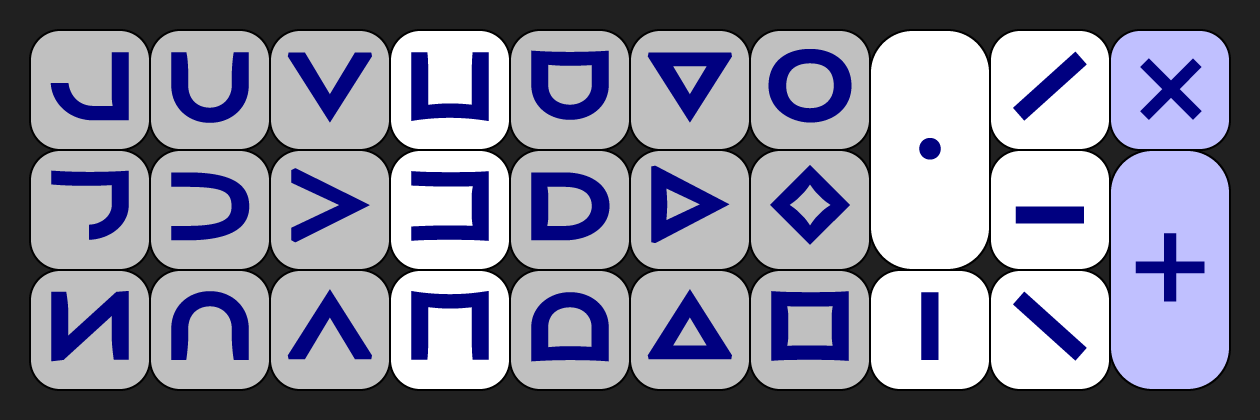
On mechanical keyboards, the two double keys are replaced by twinned single keys - press either of them. The two violet keys at the right are × Backspace and + Enter. Some keys are white to help orient your fingers. The Keyboard page at www.musa.bet explains in detail how to use a Musa keyboard.
Musa View
Musa View is a browser extension that displays Musa in web pages in Chrome, Firefox, Safari, and Edge. It even correctly displays Musa Markup. So if you run across a web page showing Musa text, but neither the page nor your machine have a Musa font installed, the letters will still display correctly. Download Musa View here.
| © 2002-2026 The Musa Academy | upa@musa.bet | 30oct25 |